

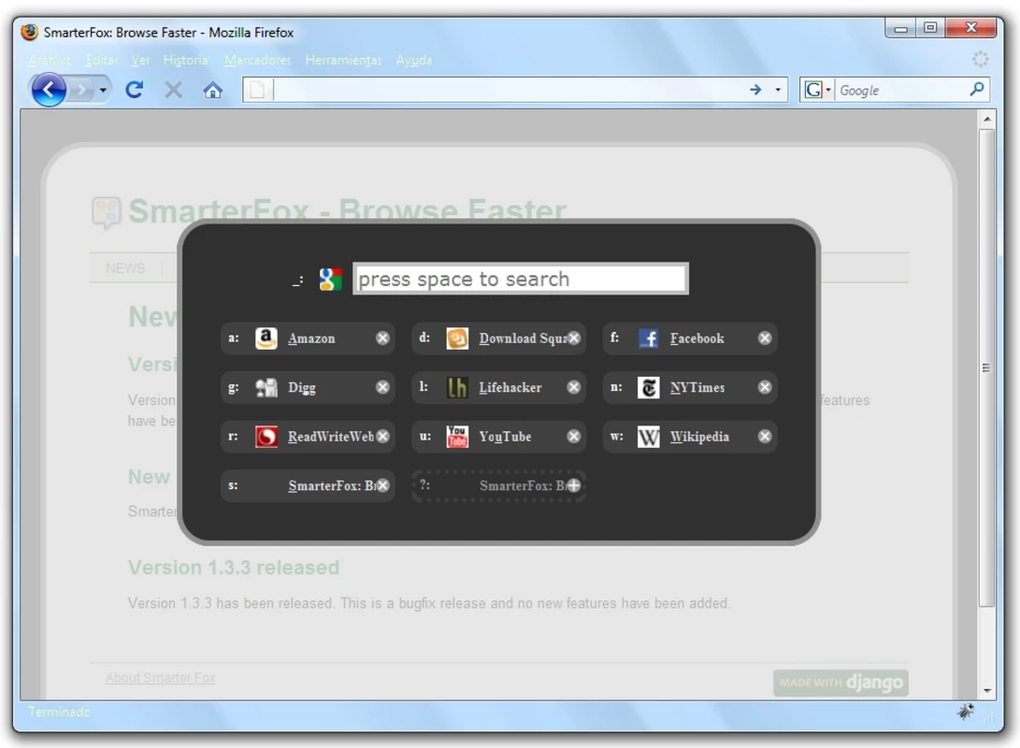
Description
Download SmarterFox Browse Faster – Firefox extension for faster searching, smarter browsing
Overview
SmarterFox Browse Faster is a free Firefox extension that reimagines the everyday search experience. Instead of waiting for the default search engine to deliver a single list of results, SmarterFox surfaces alternative suggestions, enriches Wikipedia pages with extra context, and lets you peek at results directly from the address bar as you type. The extension is built around the philosophy that web navigation should be fluid, not a series of clicks and page reloads. By integrating a lightweight “qLauncher” tool, SmarterFox also gives power‑users a rapid way to add the current page to a personal favorites list, launch favorite sites, or jump to a new URL using a single keyboard shortcut (Ctrl‑Space by default). The design is intentionally unobtrusive – the toolbar icon blends with Firefox’s native UI, and the extra panels appear only when you invoke them, keeping the browsing canvas clean. For anyone who spends hours researching topics, comparing products, or simply scrolling through Wikipedia, SmarterFox promises a measurable boost in efficiency. The extension is continuously updated by its developers, ensuring compatibility with the latest Firefox releases and incorporating community‑driven enhancements. In short, SmarterFox Browse Faster turns the address bar into a mini‑search hub, adds a context‑aware launcher, and enriches information without sacrificing speed or security.
Key Features
- Alternative Search Results: Retrieves complementary results from multiple engines, giving you a broader view without leaving the page.
- Live Address‑Bar Preview: Shows search suggestions instantly as you type, reducing the need for extra queries.
- Wikipedia Enrichment: Injects additional facts, related articles, and quick links into Wikipedia pages for deeper insight.
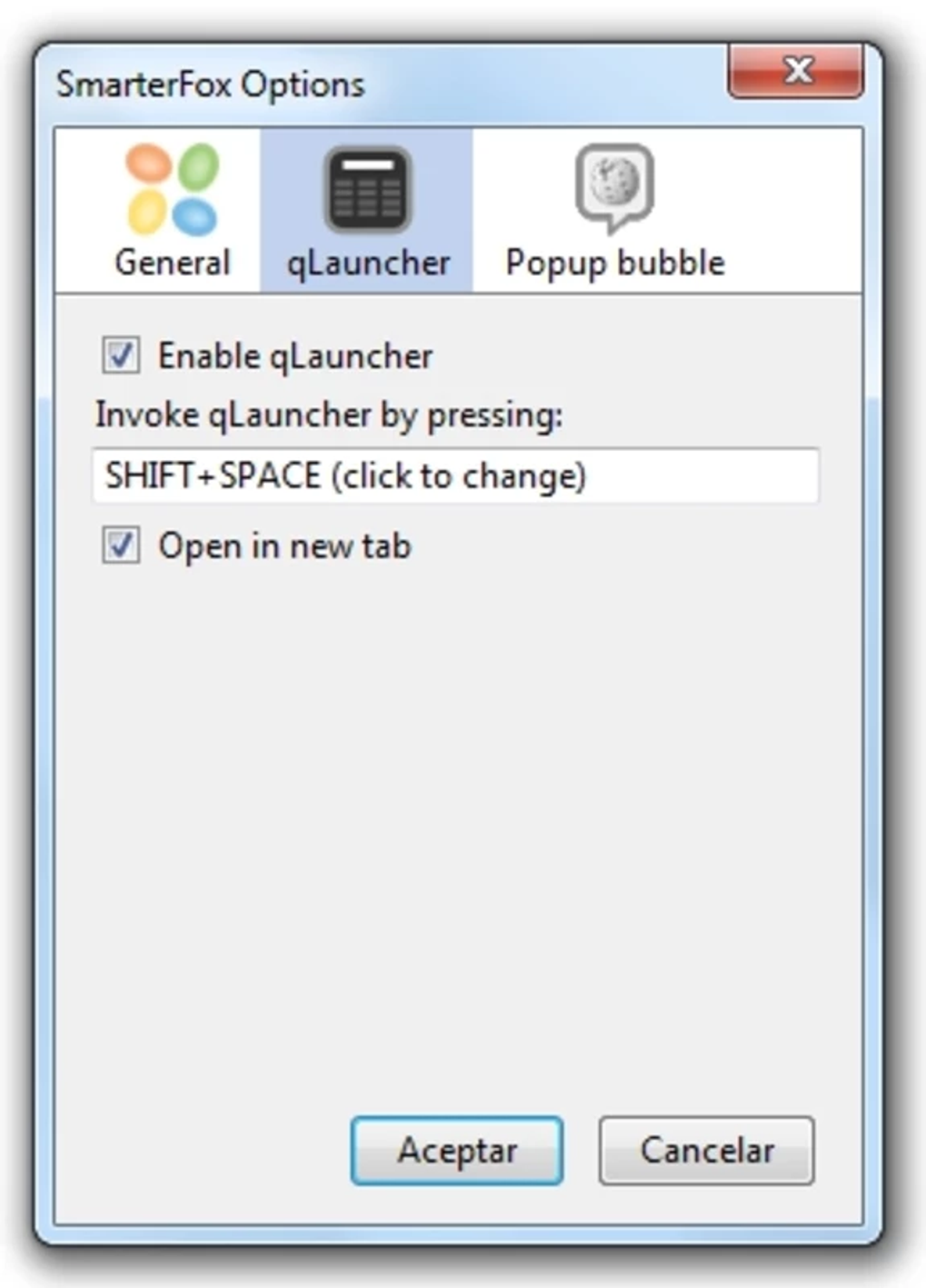
- qLauncher Shortcut (Ctrl‑Space): Opens a compact launcher that lets you add the current page to favorites, open recent sites, or launch a new URL in seconds.
- Favorites Management: Stores frequently visited sites in a tidy list that syncs with Firefox’s built‑in sync feature.
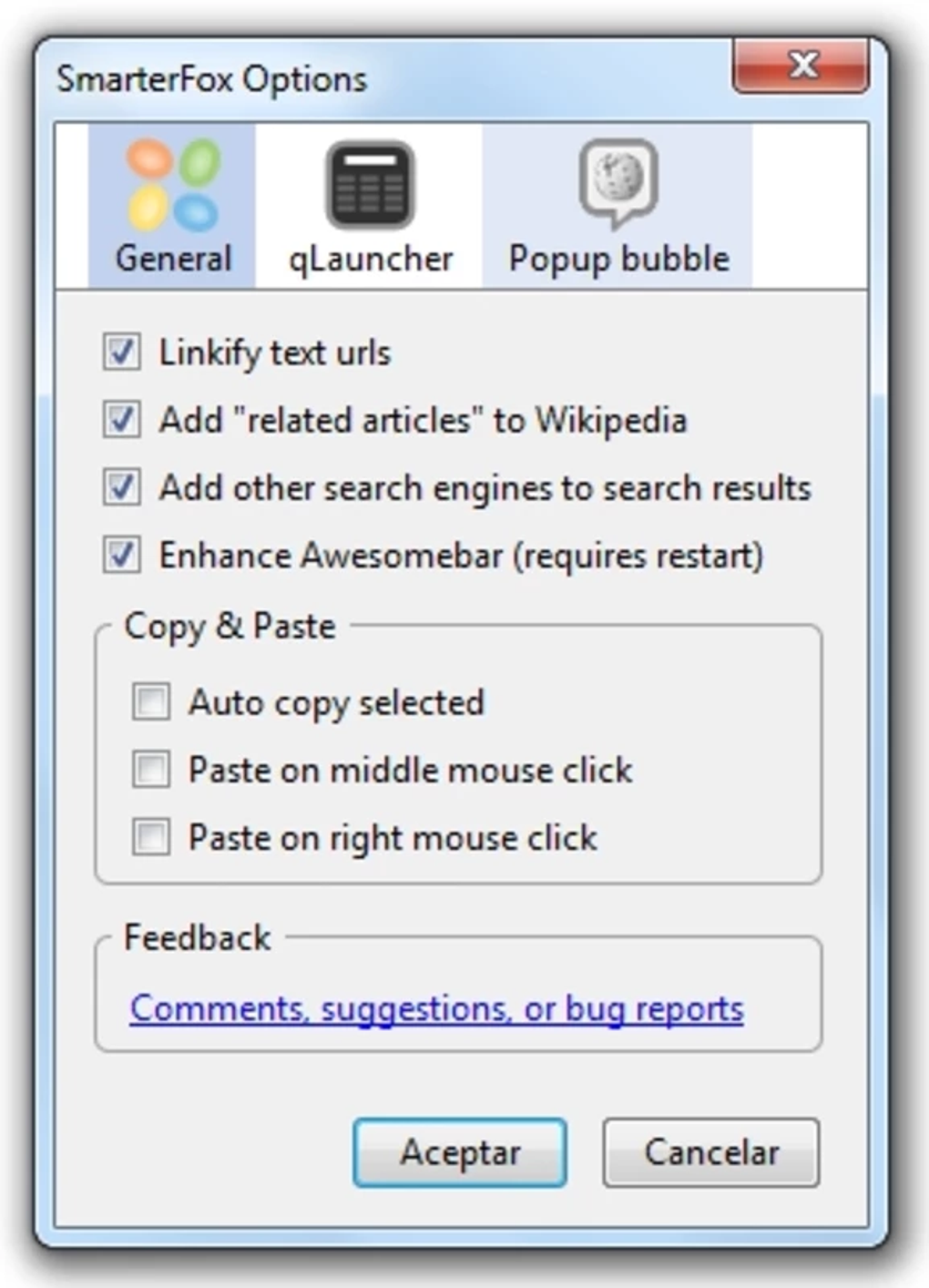
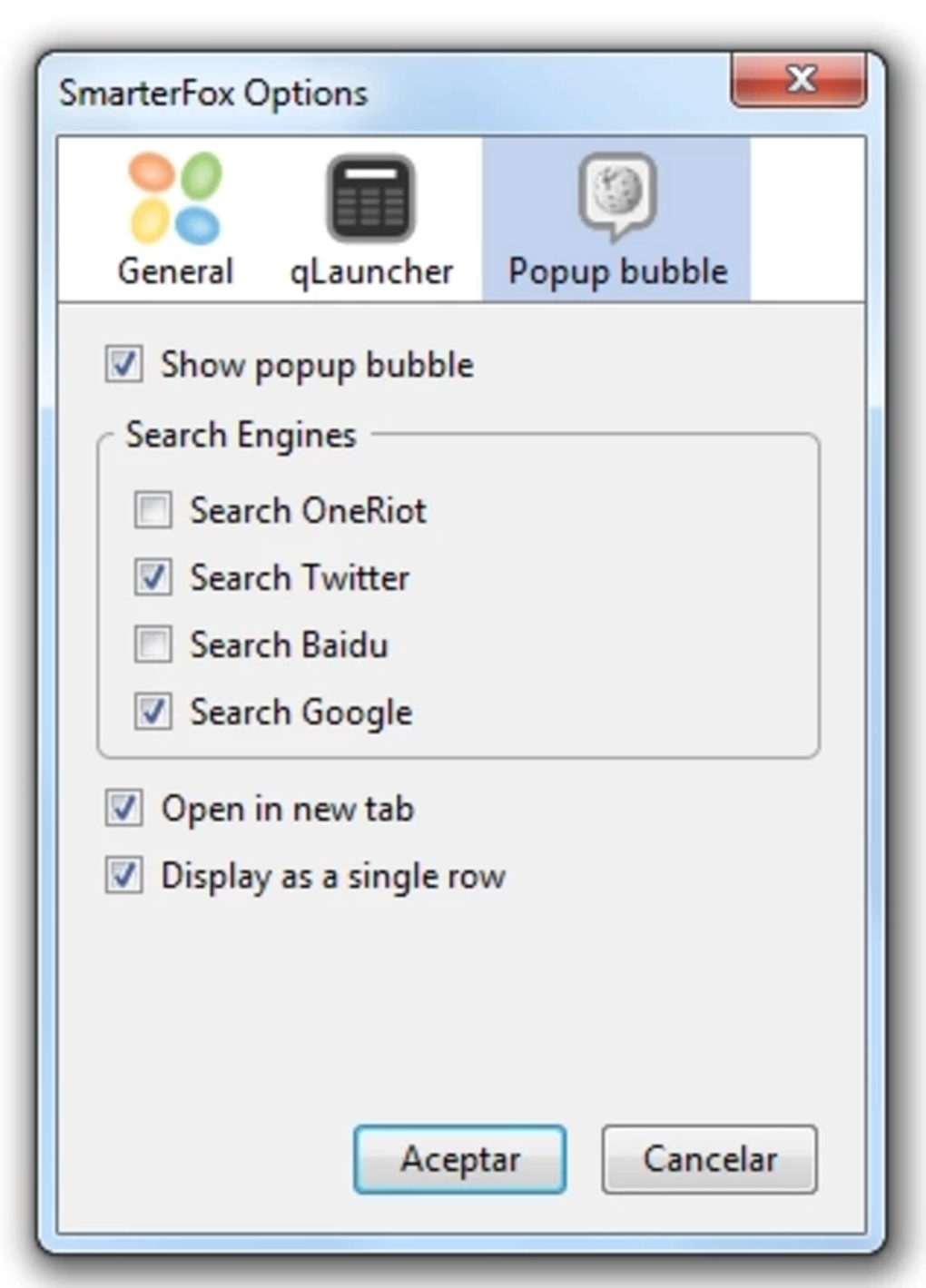
- Customizable Settings: Adjust shortcut keys, choose which search engines to query, and toggle Wikipedia enhancements.
- Lightweight & Secure: Uses minimal memory, respects privacy, and runs sandboxed within Firefox’s extension framework.
- Automatic Updates: Receives regular patches and feature upgrades via Mozilla’s add‑on marketplace.
Installation & Usage Guide
Getting SmarterFox Browse Faster up and running is straightforward, even for users who are new to browser extensions. Follow these steps for a smooth installation:
- Visit the Mozilla Add‑On Store: Open Firefox and navigate to addons.mozilla.org. Search for “SmarterFox Browse Faster” or follow the direct link provided on the developer’s website.
- Click “Add to Firefox”: The browser will prompt you with a permission dialog. Review the requested permissions – primarily access to your browsing data for search enhancement – and click “Add”.
- Confirm Installation: After the download completes, a small notification appears confirming the extension is installed. You’ll see the SmarterFox icon (a stylized fox) appear next to the address bar.
- Initial Configuration: Click the icon and select “Options”. Here you can choose which search engines to query, enable or disable Wikipedia enrichment, and customize the qLauncher shortcut if the default Ctrl‑Space conflicts with other tools.
- Using Live Search Preview: Start typing any query into the address bar. SmarterFox will display a dropdown of alternative suggestions beneath the bar. Press Enter to launch the selected result, or use the arrow keys to navigate.
- Activating qLauncher: Press Ctrl‑Space (or your custom shortcut). A compact overlay appears with three tabs – “Favorites”, “Recent”, and “New URL”. To add the current page to favorites, simply hit the “Add” button inside the overlay; the page instantly appears in the “Favorites” list.
- Managing Favorites: Open qLauncher again, switch to the “Favorites” tab, and drag‑drop entries to reorder or click the “X” to remove them. These changes sync across all devices logged into the same Firefox account.
- Updating the Extension: Firefox checks for updates automatically. When a new version is available, you’ll receive a quiet notification. Click “Restart to Update” to apply the latest improvements without losing your settings.
The user interface is deliberately minimalistic: no pop‑ups, no intrusive ads, and no hidden telemetry. If you encounter any issues, the “Help” section within the Options page links to a knowledge base and a community forum where developers respond quickly. For power users, SmarterFox also supports command‑line parameters via the qLauncher, enabling scripted workflows for research teams or SEO professionals.
Compatibility & System Requirements
SmarterFox Browse Faster is designed exclusively for the Mozilla Firefox browser, which runs on a wide range of operating systems. The extension is compatible with:
- Windows 10, 11 and later: Fully supported on 64‑bit builds of Firefox. No additional libraries are required.
- macOS 10.15 (Catalina) and newer: Works seamlessly with the native Firefox for macOS. Users on Apple Silicon (M1/M2) experience the same performance as Intel‑based Macs.
- Linux distributions: Tested on Ubuntu 20.04+, Fedora 34+, and Debian 11+. As long as you run a recent Firefox version (78+), SmarterFox functions without modification.
- Firefox Quantum (v57+) and later: The extension leverages WebExtension APIs introduced in Firefox Quantum, guaranteeing stability and security across all modern releases.
Because SmarterFox operates entirely within the browser sandbox, it does not require elevated system privileges or additional runtime environments. Memory consumption stays under 30 MB during active use, making it suitable for older machines or low‑end laptops. The extension also respects Firefox’s built‑in privacy settings; if you disable third‑party cookies or enable tracking protection, SmarterFox adapts accordingly and continues to provide search suggestions based on local data only.
Pros and Cons
Pros
- Provides alternative search results, expanding the pool of information without extra clicks.
- Live address‑bar preview speeds up query formulation.
- Wikipedia enrichment adds contextual depth, reducing the need for multiple tabs.
- qLauncher shortcut dramatically improves navigation efficiency.
- Lightweight, low memory footprint, and runs securely within Firefox.
- Fully customizable shortcuts and engine selections.
- Automatic updates keep the extension current with Firefox releases.
- Free to download and use, with no hidden fees.
Cons
- Only available for Firefox; Chrome or Edge users must switch browsers to benefit.
- Default shortcut (Ctrl‑Space) may clash with IDEs or other productivity tools.
- Wikipedia enrichment can be overwhelming for users who prefer minimal page layouts.
- Some advanced search engine integrations require API keys that are not bundled.
- Occasional latency when fetching alternative results on slower internet connections.
Frequently Asked Questions
Is SmarterFox Browse Faster completely free?
Yes, the extension is offered at no cost. There are no hidden subscription fees or in‑app purchases. All core features—including alternative search results, Wikipedia enrichment, and qLauncher—are available for free.
Can I use SmarterFox with other browsers like Chrome or Edge?
Currently SmarterFox is built using Firefox’s WebExtension APIs and is only published in the Mozilla Add‑On Store. A Chrome version is planned, but at the moment you need Firefox to access its features.
How does the qLauncher shortcut affect my existing keyboard shortcuts?
The default shortcut is Ctrl‑Space, which is rarely used in browsers but may conflict with IDEs or custom tools. You can change the shortcut in the SmarterFox Options panel under “Keyboard shortcuts”. The new combination is saved locally and does not interfere with other extensions.
Is my browsing data safe when using SmarterFox?
SmarterFox adheres to Mozilla’s strict extension security model. It only reads the URL you are currently visiting to provide context‑aware suggestions. No personal data is transmitted to external servers unless you enable optional third‑party search engines that require API keys.
What should I do if the extension stops working after a Firefox update?
First, check the “Add‑ons” manager for any pending updates—Firefox often releases a quick patch for extensions after a major browser update. If the problem persists, disable and re‑enable SmarterFox, or reinstall it from the Mozilla Add‑On Store. You can also report the issue through the built‑in “Help” link; the developers usually respond within 24 hours.
Conclusion & Call to Action
SmarterFox Browse Faster delivers on its promise of a more intelligent, faster web‑search experience for Firefox users. By weaving alternative search results, real‑time address‑bar previews, and enriched Wikipedia content into a single, low‑impact extension, it saves time and reduces the cognitive load of modern research. The addition of qLauncher turns the keyboard into a launchpad, letting power users curate favorites and jump between sites without breaking their flow. While the lack of cross‑browser support and occasional shortcut conflicts are minor drawbacks, they are outweighed by the productivity gains and the fact that the tool is free and regularly updated. If you spend a significant portion of your day browsing, researching, or drafting content, installing SmarterFox can shave minutes off each session—minutes that add up to hours over a week. Download SmarterFox Browse Faster today, enable the qLauncher shortcut, and experience a smoother, smarter browsing routine.
Guides & Tutorials for SmarterFox Browse Faster
How to install SmarterFox Browse Faster
- Click the Preview / Download button above.
- Once redirected, accept the terms and click Install.
- Wait for the SmarterFox Browse Faster download to finish on your device.
How to use SmarterFox Browse Faster
This software is primarily used for its core features described above. Open the app after installation to explore its capabilities.
User Reviews for SmarterFox Browse Faster 0
No reviews found





